
Table of contents
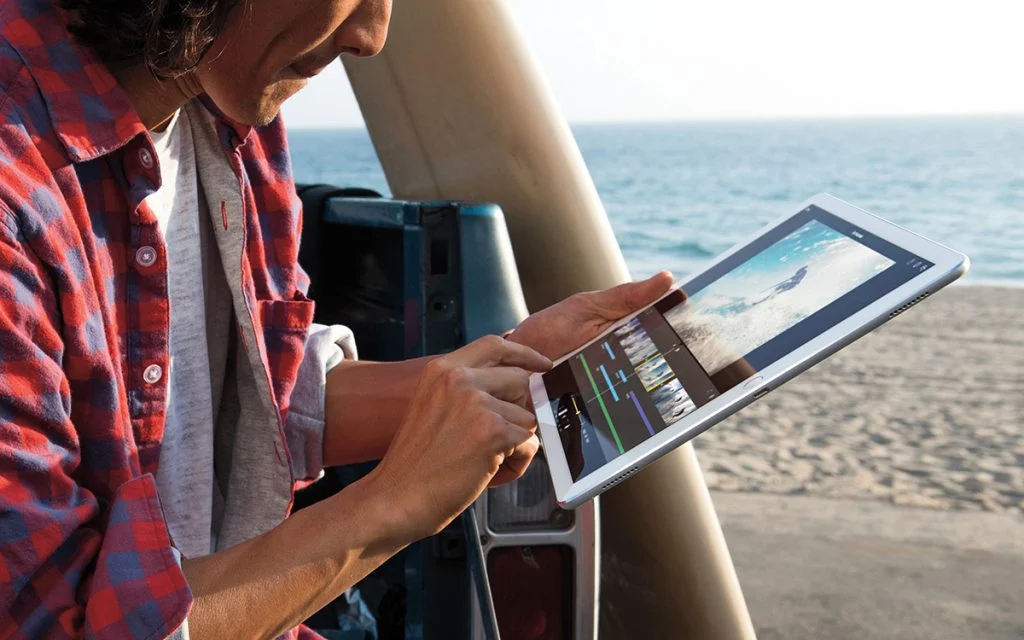
The iPad has long since ceased to be just a “video tablet”. Today, it’s a versatile tool. It handles study, work, and entertainment with equal ease. It easily replaces paper notebooks, textbooks, and even a laptop, all while remaining compact and lightweight.
If you’re already an iPhone user, adapting to it will take just minutes. iPadOS is built on the same logic, and the gestures and interface are familiar from the first touch.
The iPad’s main advantage is its large screen. It unlocks features that are either unavailable on a smartphone or implemented far less conveniently. Multitasking, document management, handwritten notes, and using the tablet as a secondary display — these features make the iPad a truly flexible work tool.
In this article, we’ll explore useful iPad features that are often overlooked but can significantly simplify everyday tasks and boost productivity.
Multitasking: When Multiple Apps Run Simultaneously
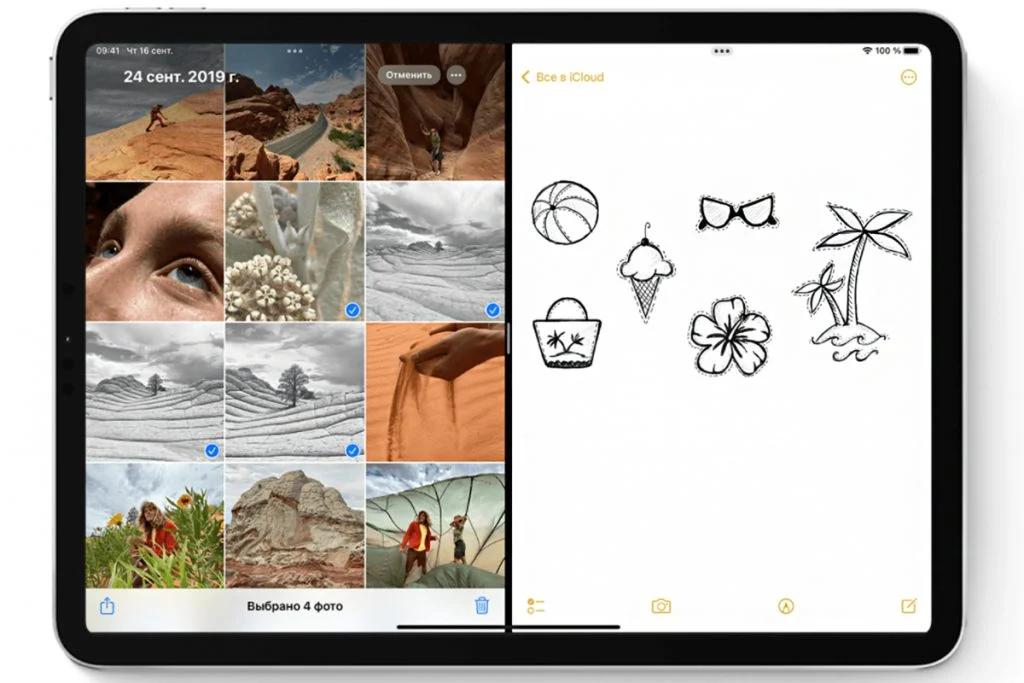
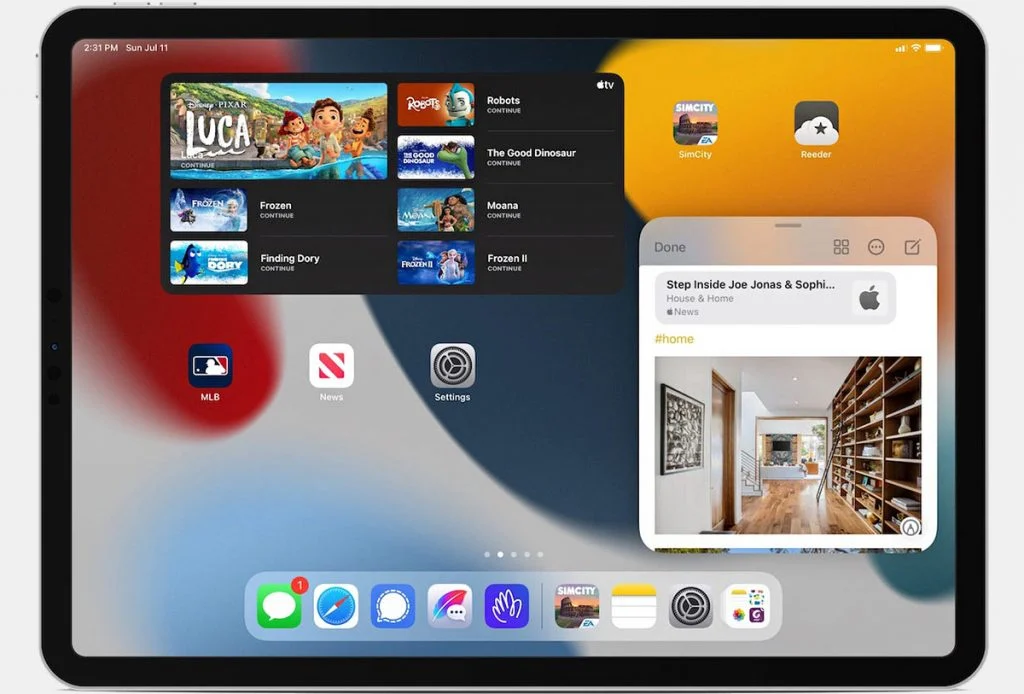
One of the iPad’s strengths is its ability to work with multiple apps simultaneously on a single screen. This is especially convenient if you frequently switch between a browser, documents, email, and instant messaging apps.
You can open two, and sometimes even three, apps simultaneously, spreading them across the screen. For example, with Safari for your sources on the left, Pages or Notes for working with text on the right, and a small instant messaging app window on top.
To enable split-screen mode, ensure this feature is enabled. It’s pretty simple. Follow these instructions:
- Open “Settings”.
- Go to “Multitasking & gestures”.
- Turn on “Split apps”.
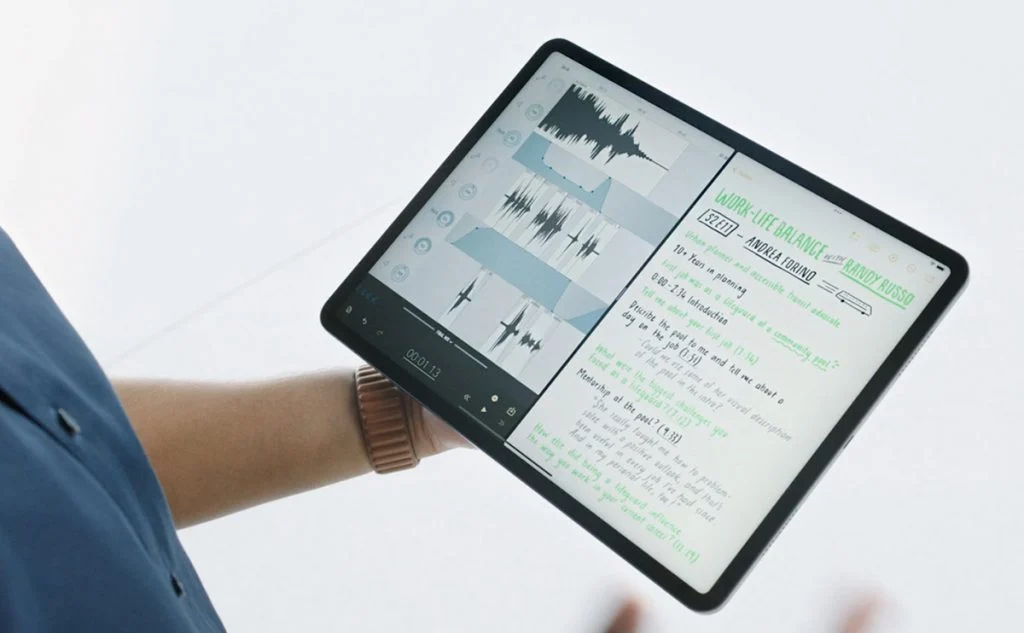
From there, everything works intuitively. Drag the window by the top bar. This will reposition it. To adjust the size, drag the corner. Minimize the current app and open it from the Dock or by swiping from the bottom. This action will automatically arrange the windows side by side.
This format is especially convenient when working with text, tables, and visual materials. You can drag and drop images, links, and text fragments directly between apps, without having to copy them through the menu.
Stage Manager: A New Level of Workspace Organization
Is the standard split-screen experience not enough for you? Then try Stage Manager. This feature is ideal for those who multitask and value organization.
Stage Manager allows you to:
- group apps by task;
- arrange windows freely on the screen;
- quickly switch between app sets.
To enable Stage Manager, go to “Settings,” then select “Multitasking & gestures,” then “Stage Manager”.
Once activated, a vertical panel with active apps and workgroups will appear on the left, and the main window will move to the foreground. This is especially convenient if, for example, you alternate between working on a presentation, spreadsheets, and email throughout the day.
Long Screenshots in PDF Format
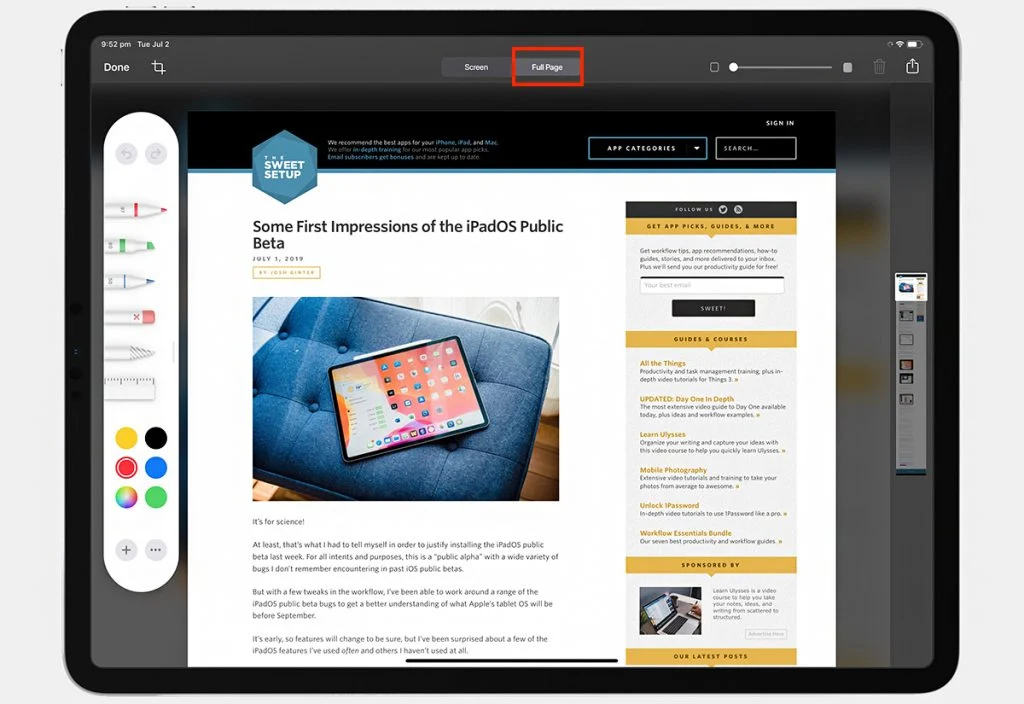
The iPad can take simple and full-stage screenshots, whether it’s a website, email, or document. Even if the content doesn’t fit on the screen, you’ll get a single, uninterrupted file.
Furthermore, you can edit such a screenshot, add notes, and save it as a PDF. This makes the document easier to share and store. Taking screenshots is quite simple. If your iPad has a Home button, press it and the top button simultaneously. If you have a model with Face ID, the combination is the top and volume buttons.
Then tap the screenshot thumbnail and select the “Full Page” tab. The document will then be ready for editing, cropping, and saving in the desired format. The PDF automatically adjusts to the screen size when viewed on an iPad or iPhone, making it convenient to read and share.
Quick Notes: Capture a Thought in a Second
Sometimes an idea strikes suddenly, while on a video call, reading an article, or browsing a catalog. Quick Notes let you note important info without stopping your work.
You can save:
- contact information;
- links;
- shopping list;
- quick thoughts or reminders.
All notes are automatically saved in the Notes app and sync across your Apple devices. You can create quick notes via Control Center or by swiping from the bottom corner of the screen with your finger or Apple Pencil.
You’ll need to set up gestures in advance. Follow these steps: Settings → Apps → Notes → Corner Gestures. If required, enable Corner Swipe in the Multitasking & Gestures section.
Split Keyboard: Typing Comfort
When typing long texts on a standard keyboard, it can be awkward. The iPad solves this problem with a split keyboard.
The on-screen keyboard separates into two sections, leaving a gap in the middle. This allows you to hold the tablet with both hands and type with your thumbs, just like on a smartphone. To enable the split keyboard, open Settings, go to “General”, select “Keyboard”, and then toggle the option on. 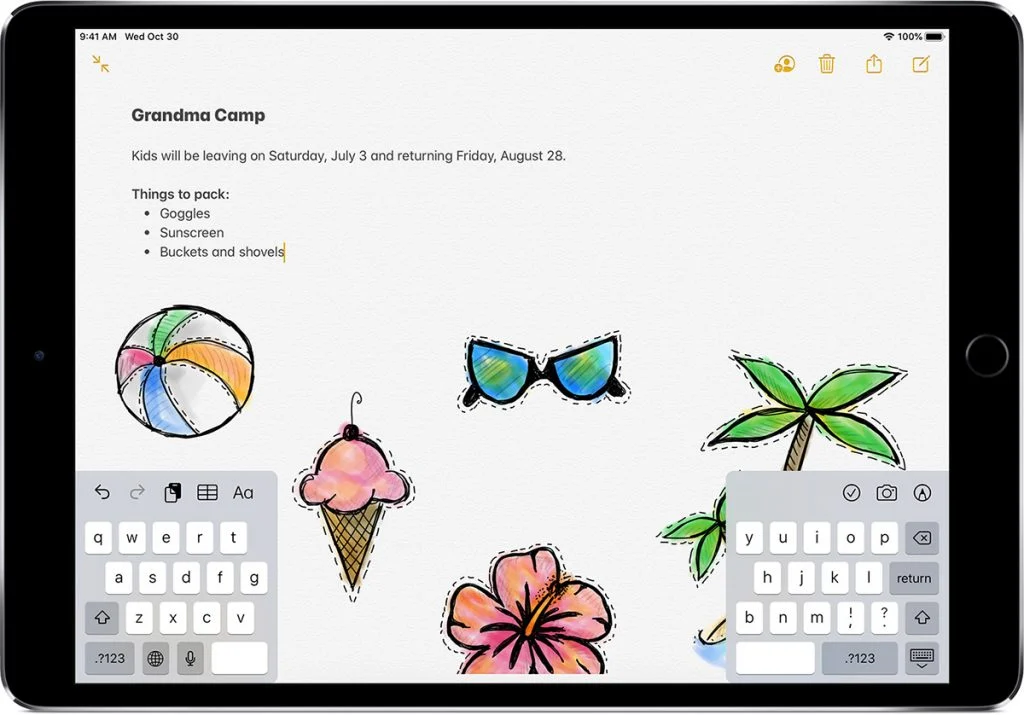
Sidecar: iPad as a Second Screen for Mac
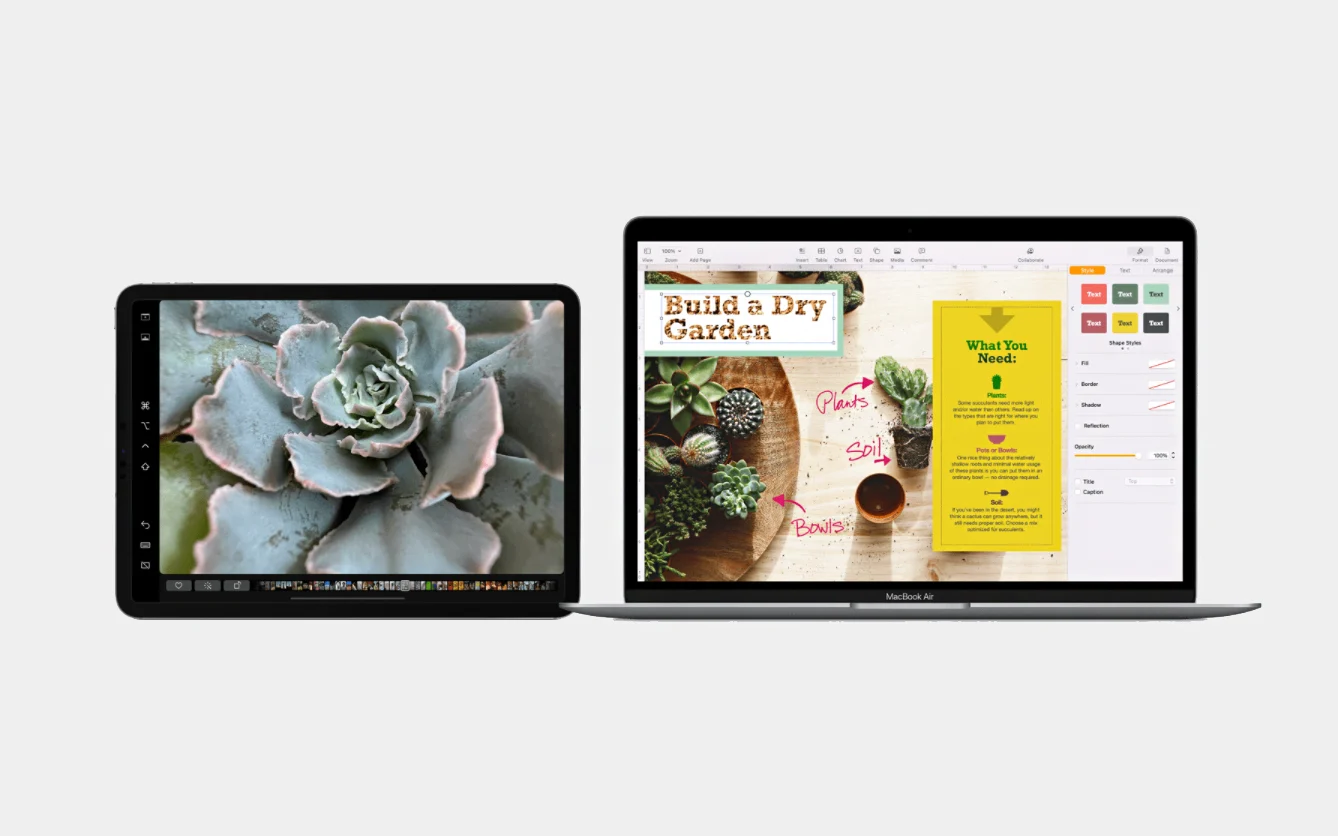
Sidecar turns your iPad into a fully-fledged secondary display for your Mac. This is especially useful if you lack space for windows, timelines, or toolbars.
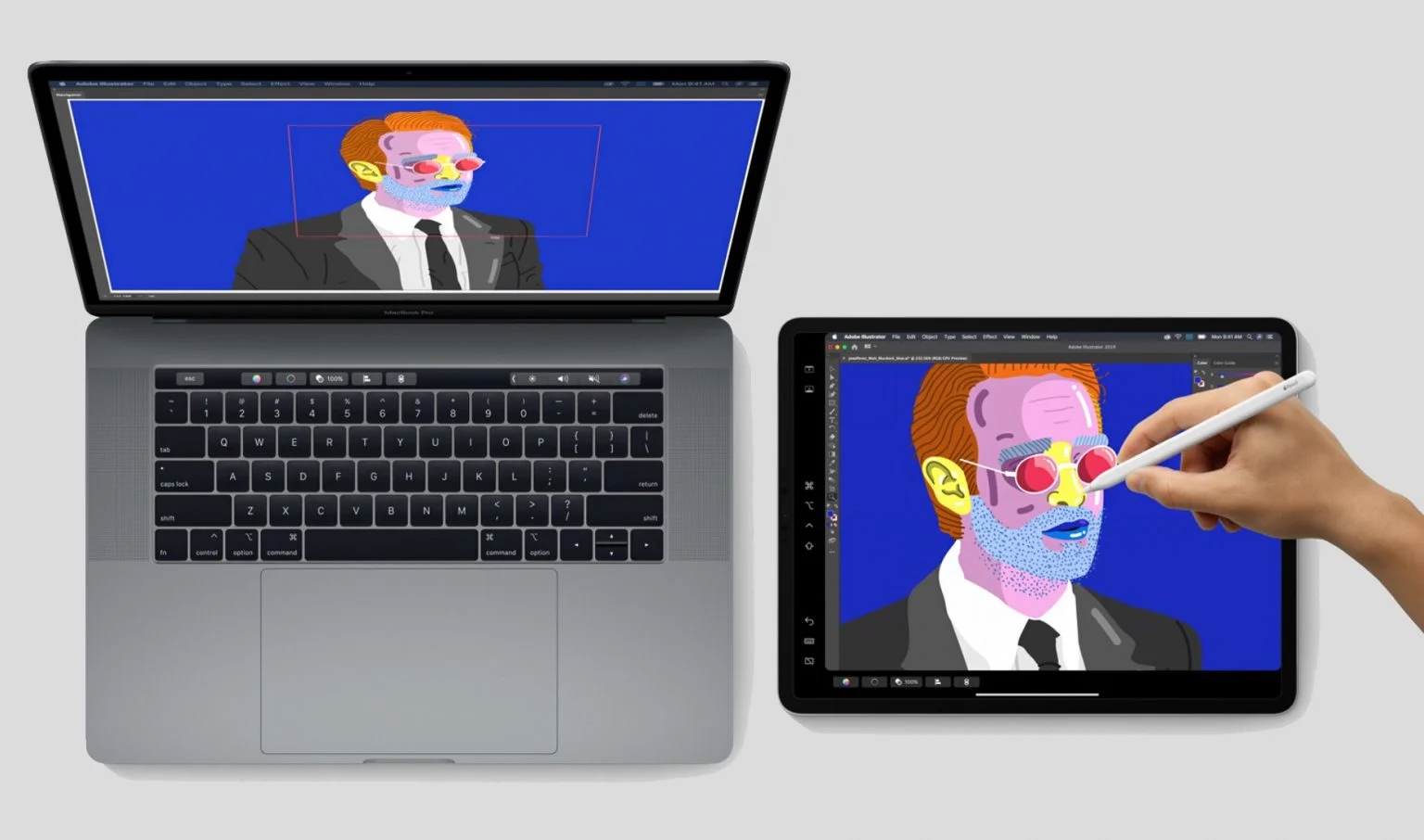
Furthermore, with the Apple Pencil, your iPad becomes a graphics tablet. It’s perfect for the following tasks:
- illustration;
- photo retouching;
- video editing;
- design editing.
In order to connect your iPad to your Mac, both devices must be signed in to the same account. Update macOS to the latest version, then place the devices side by side. Finally, open the Apple menu on your Mac, then select System Preferences > Displays. Next, select your iPad.
Sidecar works over Wi-Fi or a cable. A wired connection also charges the tablet, which is convenient for extended work sessions. Sidecar has two modes. The first lets you extend your desktop, while the second enables you to mirror your screen. Even if your Mac doesn’t have a Touch Bar, Sidecar will display it on your iPad. You can use your finger or Apple Pencil to press controls.
iPad Is More Than It Seems
The iPad truly shines when you start using it to its full potential. The tablet is a versatile tool thanks to its multitasking capabilities, quick note-taking, PDF editing, flexible keyboard, and Mac integration. Personal and professional use are both appropriate.
If you want your iPad to do more than just display content, it’s worth taking a little time to set it up. Trust me, you’ll notice the results within just a few days.
You can find even more life hacks and news about Apple technology on our Instagram. Subscribe so that you don’t miss the interesting things and keep up to date with the news!
Read also:
Stay informed at all times!
Subscribe to the newsletter and be the first to learn about the store's new promotions and special offers!