
Table of contents
If you’ve left your Apple gadget in a café, can’t find it in your apartment, or it’s been stolen, use the Find My app. You don’t need to install it separately — it’s automatically available on laptops, tablets, smartphones, and even smartwatches. In our article, you’ll learn how to activate this program on your Mac, iPad, and Watch to make it easier to find your device if you lose it.
Features of the Find My App
Find My is an app developed for Apple gadgets. It combines the functionality of two services:
- Find Friends;
- Find My Device.
Previously, these were separate programs, which were combined into one when the operating systems were updated in 2019.
The main feature of the app is that it can determine the location of devices without connecting to the internet. This makes it superior to the Find My Device app for other operating systems.
The search uses a Bluetooth connection to nearby devices from the same manufacturer. The app also supports “Family Access,” which allows you to share your location with your loved ones.
Find My Features
With this program, you can find lost devices even if they are disconnected from the internet or completely discharged. You can also use the service to remotely activate an audible signal on the device, which is useful when you are looking for a tablet or smartwatch in a room.
If you can’t find your lost item, you can use the “Mark as Lost” option. In this mode, the lost device will be locked, and you will keep all the information on it. At the same time, you can display your contact details on the screen so that people who find your MacBook or other Apple devices can return them to you.
Another important option is “Erase this device.” It allows you to permanently delete all files and is used if you haven’t found your gadget and don’t want your data to fall into the wrong hands.
How Do I Add My MacBook to Find My?
You can add gadgets to the search program using system settings. You can add your Mac to Find My Mac as follows:
- Go to System Preferences.
- Click on your account in the upper left corner.
- Go to iCloud and click on the See All tab.
- Open the Find My Mac section and click on the Turn On button.
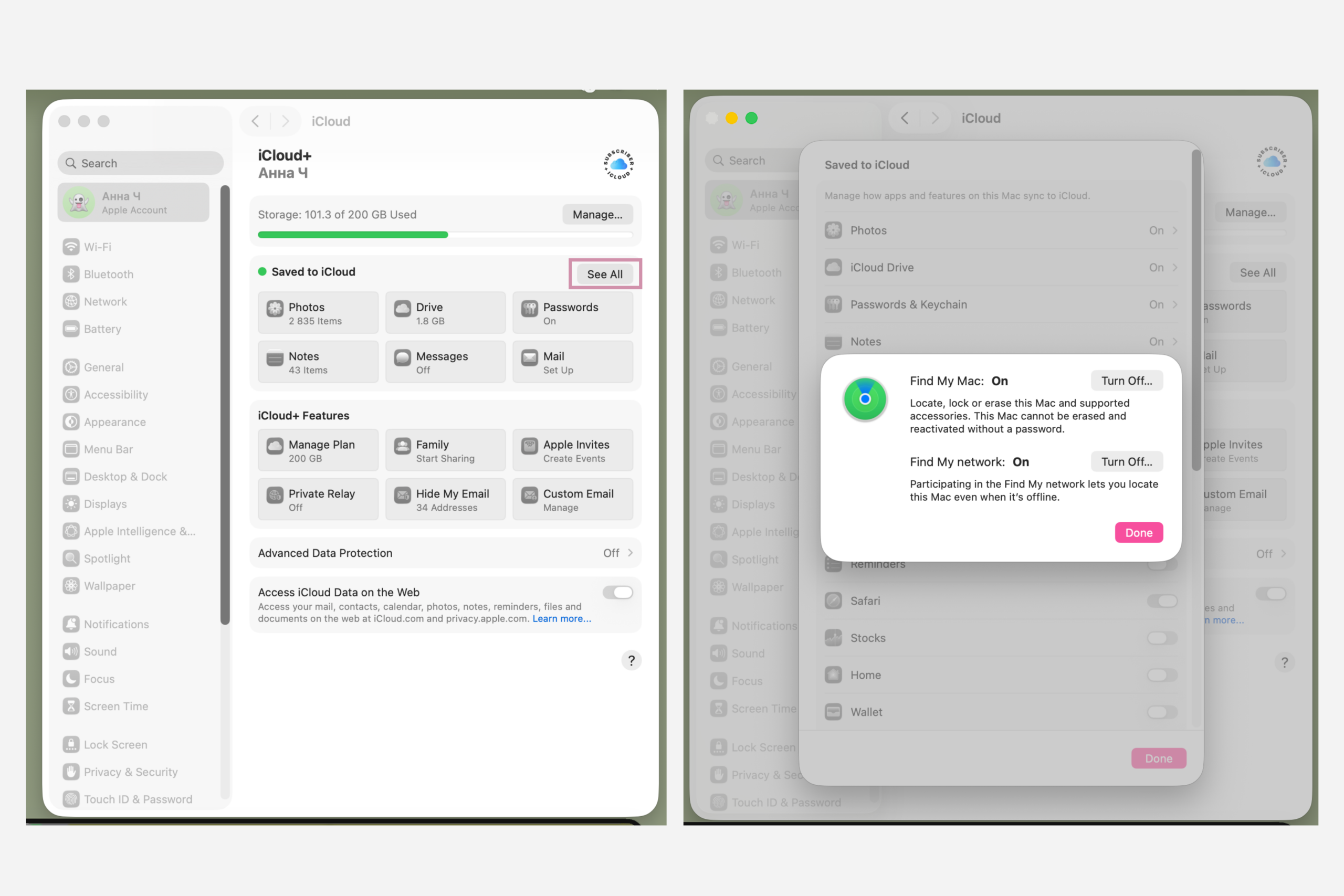
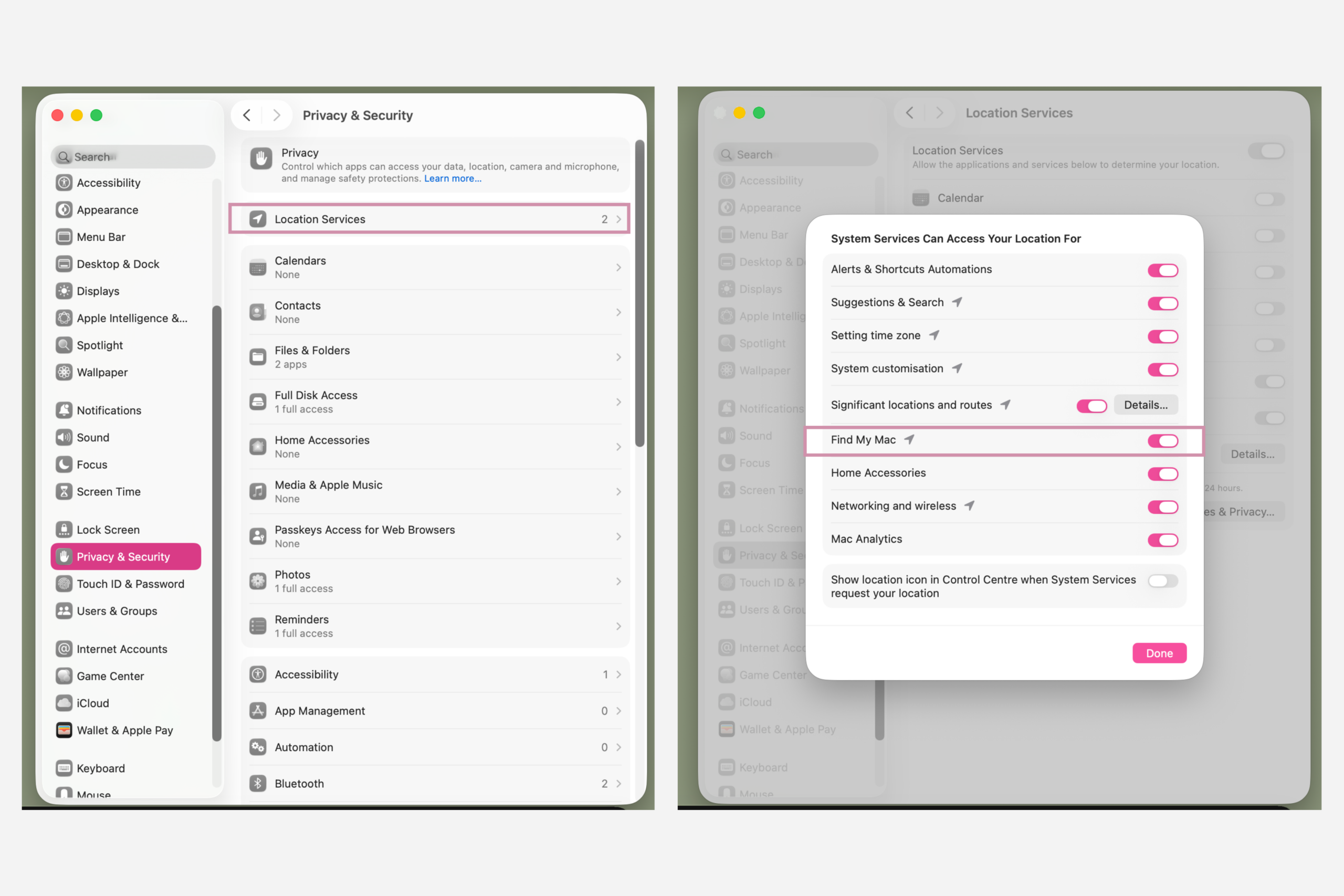
To be able to search for your device offline in the future, you need to activate the “Locator Network” option right away. This will allow you to see the last or approximate location of your gadget when it is not connected to the internet.
How to Activate “Find My” on iPad and Watch?
The same principle applies to other gadgets. On your tablet, go to “Settings,” tap on your profile name, select “Find My,” and activate the “Find iPad” option. By the way, you can add third-party items to the app. For example, you can easily add a stylus via the “Devices” menu in Find My on your tablet.
First, you need to sync your Apple Watch with your main device (usually a smartphone or tablet). Then go to the settings on your smartwatch and activate the “Find My Watch” option. Also, check that the locator network is connected.
How to Search for Gadgets?
You can find your MacBook and other devices from this brand via the iCloud website or other gadgets with your Apple ID. The first method requires the following steps:
- go to iCloud.com/find;
- enter the activation code sent to your trusted phone;
- if the code is sent to the lost gadget, immediately go to the “Find Devices” tab;
- select a search option that is convenient and suitable for your case (sound signal, location).
You can also search for your device using other devices. To do this, open the Find My app, tap “Devices,” select the lost device, and track its geolocation.
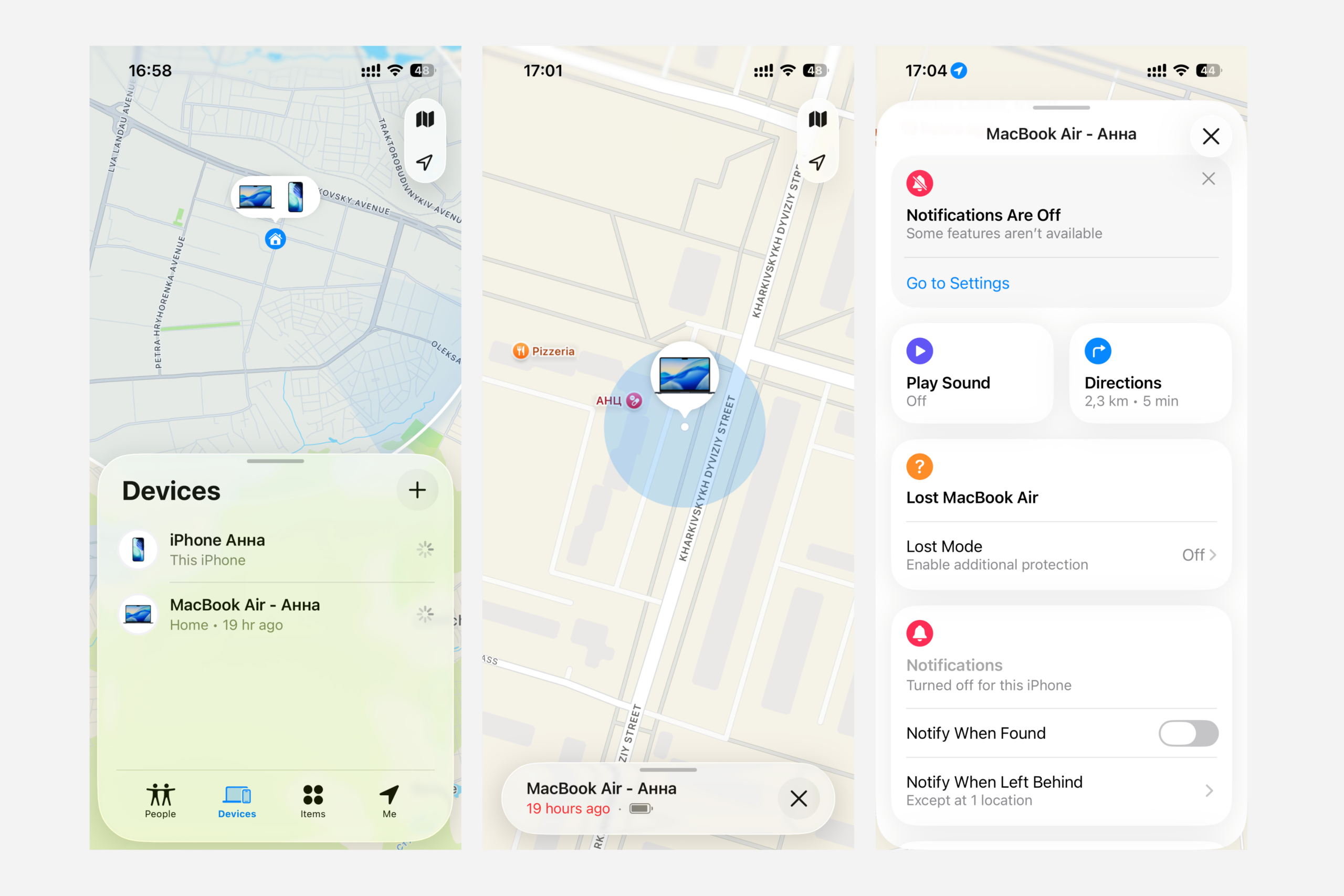
If you cannot immediately determine the location of your device, you can click on the “Mark as lost” tab to protect your personal data.
What Should You do If “Locator” is Not Activated?
If you have not activated the search app, you will not be able to use it. In this case, you need to take care of protecting your confidential information. First of all, change the password for your account and all services that remain on the lost gadget. This applies to access to banking apps, email, messengers, and social networks.
So now you know how to activate “Locator” and search for devices with it. In our blog, you can find even more useful information about smartphones, laptops, and other devices from the brand. If you still have questions, visit iSpace in Tashkent — our experts will help you set up your gadgets correctly.
FAQ
Can I find a gadget if it is turned off?
Find My allows you to search for turned-off gadgets if the “Locator Network” option is enabled. Connection via this service is maintained for approximately 24 hours after shutdown.
What are the differences between “Locator” and “Find My Device”?
The Find My Device service is part of the Google ecosystem, which allows you to find smartphones or headphones running on Android and Windows operating systems. The program works when the device is connected to the internet. The Locator app is designed for Apple devices and does not require an internet connection.
Does the app work without the internet?
Yes, you can locate your laptop, watch, or tablet even if they are not connected to mobile internet or Wi-Fi. The system works in part thanks to Bluetooth technology.
What is the difference between “Erase this device” and “Mark as lost”?
You can choose the “Mark as Lost” service at the initial stage of searching for your gadget. This will lock your laptop, tablet, or watch and protect your personal data. The “Erase This Device” option is necessary if you cannot find your device and want to delete all information from it.
Check out more
2025 iPad Pro M5 Review: A New Level of Power and Artificial Intelligence
MacBook Pro 14 Review: What’s New in the 2025 Model with the M5 Chip?
M5 in Action: MacBook Pro and iPad Pro Open a New Page in the History of Apple Intelligence
Stay informed at all times!
Subscribe to the newsletter and be the first to learn about the store's new promotions and special offers!